Printer-Friendly FedEx Mobile FAQs
List of Features
- Features
- FedEx Mobile offers the following features:
- Track any package or freight shipment
- Track history (up to 25 packages)
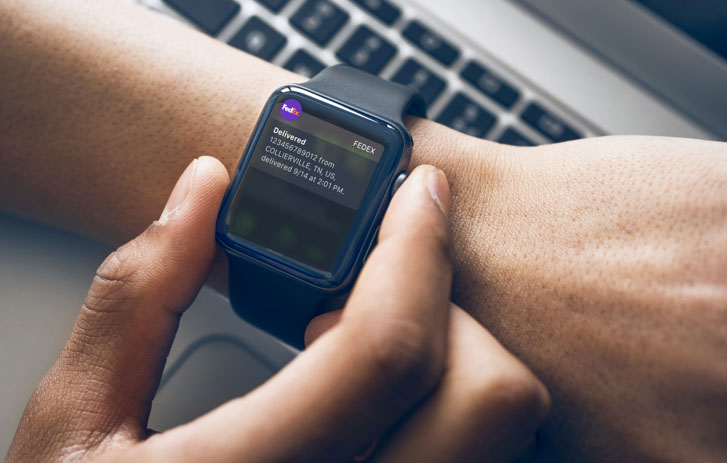
- Receive shipment notifications
- Find FedEx staffed, self-service and FedEx Authorized ShipCenter locations
- Get account-specific rate quotes
- Access your fedex.com Address Book
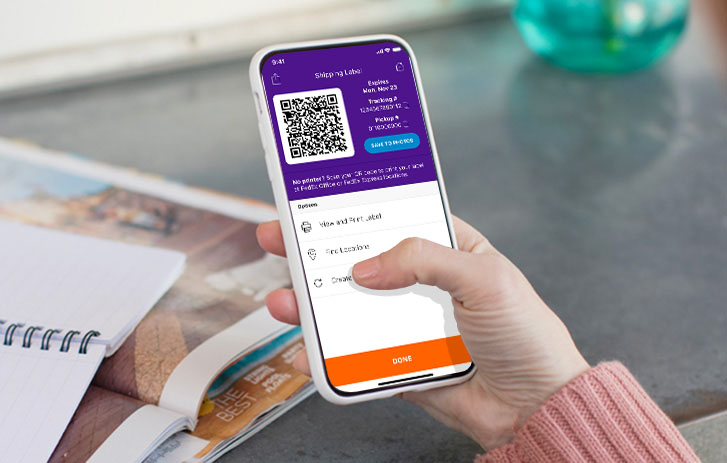
- Create and e-mail a shipping label
- Download FedEx Racing® wallpaper
- Provide feedback directly to FedEx
Track the status of any package or freight shipment
FedEx Mobile recognizes tracking numbers for FedEx Express®, FedEx Ground®, FedEx Home Delivery® and FedEx Freight® shipments. All you need to do is enter the tracking number, and we’ll provide you with timely and accurate information about your shipment.Track history
We’ll display up to 25 of the most recent packages tracked or shipped from your mobile device. Simply select the tracking number from the history and we’ll provide timely and accurate information about your shipment.Receive Shipment notifications
Choose to receive e-mail notifications about exception and delivery updates. You can even choose whether you’d prefer plain text, HTML or a wireless format.Find FedEx staffed, self-service and FedEx Authorized ShipCenter locations
With only a ZIP code or a phone number, you can find the nearest FedEx staffed, self-service or FedEx Authorized ShipCenter locations. You can even specify whether you want locations that accept FedEx Express shipments, FedEx Ground shipments, or both.Get account-specific rate quotes
Once you’ve logged in, we’ll be able to provide you with a quote and expected delivery date for all of our FedEx Express and FedEx Ground services. We’ll automatically apply your account-specific rates. You can quickly choose which service you’d prefer to use and then get further details about the base rate, applicable surcharges, taxes, discounts and the total rate.Access your fedex.com Address Book
Use your fedex.com Address Book to search for contacts. Search the address book by either a person’s name or company, and we’ll fill in the recipient details for you automatically. Searches are case sensitive.Create and e-mail a shipping label
Once you’ve completed preparing your shipping label, you can e-mail it to any address you prefer.Download FedEx Racing wallpaper
Put FedEx Racing on your phone! Choose from several images with a resolution of either 120x120 or 640x480.Provide feedback directly to FedEx
FedEx Mobile for iPhone offers the following additional features:
FedEx is interested in hearing what you think about the application. FedEx Mobile allows you to send feedback to FedEx. Have a great idea? Found a problem? Simply enter your thoughts in the Feedback box (no more than 500 characters), and choose “Send feedback.”- Access full account synchronization
- Automatically download shipment information (FedEx InSight® users only)
- Receive automatic shipment updates
- Add shipments to a watch list
- Remove shipments from the application
- Nickname shipments
- Add tracking numbers
- View tracking details
- View select shipment exceptions
- See shipment progress in the shipment progression bar
- Access mobile.fedex.com
Access full account synchronization
Any package shipped with an account number tied to your fedex.com login automatically appears in your "All" list. Nicknames, notes and tagged shipments through FedEx InSight or FedEx Desktop show up on your iPhone, hassle-free.Automatically download shipment information (FedEx InSight users only)
FedEx Mobile for iPhone has added benefits for FedEx InSight users by automatically pulling shipments to the iPhone once logged in. If you do not currently have access to FedEx InSight and would like enhanced visibility within FedEx Mobile for iPhone, please register here.
Receive automatic shipment updates
FedEx Mobile for iPhone updates the status of all packages automatically. At a glance, you’ll know if a package has been picked up, is in transit, encounters an exception or has been delivered.Add shipments to a watch list
You can add shipments to your watch list at any time by simply clicking on the star icon. The star icon will turn yellow which denotes that the shipment has been added to the watch list.You can access all the shipments that have been added to the watch list by selecting "Watch list" from the Advanced drop-down menu. To remove a shipment from the watch list, simply click on the star icon again.
Remove shipments from the application
To remove a shipment from the application, simply click “Edit” and then choose “Remove.”Nickname shipments
You can nickname your shipments by clicking on the pencil icon. This will bring up a box to add a nickname to that particular shipment. After you nickname your shipment, the application will show the new name along with the tracking number. You can use the same nickname on multiple shipments. You will be able to easily identify and find this shipment by using the search capability within FedEx Desktop.Add tracking numbers
You can manually add tracking numbers one at a time by selecting “Add” located at the bottom of the main iPhone screen. Manually adding tracking numbers brings up a tracking detail page that shows detailed information about the shipment and all associated information related to the package. FedEx Mobile for iPhone will remember your shipments and provide you automatic shipment updates until the shipment is delivered.View tracking details
Click the tracking placard to view the tracking details, which include shipment origin and destination, shipment progression, notes, nicknames, tracking number, complete travel history, shipping service, reference number, weight and number of packages.View select shipment exceptions
Shipments that encounter exceptions are highlighted in red to advise you when an exception occurs. Clicking on the tracking number will bring up the details screen, which will show more information on the shipment exception.You can also easily view your shipment exceptions by selecting "Exceptions."
See shipment progress in the shipment progression bar
This bar represents the progress of the movement of your shipment. The different bars are:- Shipment initiation – FedEx received shipment information from sender.
- Pickup – FedEx has possession of shipment.
- In transit – Shipment is in transit to its final destination.
- Delivered – Shipment has been delivered.
Access mobile.fedex.com
From the “More” tab within the application, you will be able to navigate to the following pages within fedex.com:- Ship with FedEx
- Get rates and transit times
- Find FedEx locations
Requirements
- What devices does FedEx Mobile support?
- Supported Devices for FedEx Mobile: Web-enabled phone (e.g. Motorola Razr, Palm Treo or Blackberry)
Supported Devices for FedEx Mobile for iPhone: Apple iPhone, Apple iPhone 3G and Apple iPod TouchData plan required. Charges from carrier may apply.
- Why register?
- FedEx considers the security of your shipment information a top priority and therefore, registration is required for visibility to shipment information. After you register, you can get timely and accurate status of your shipments. You can receive notifications about critical shipping events and possible actions to speed the delivery.
Technical
- What do I need in order to use FedEx Mobile?
- Simply navigate to mobile.fedex.com. As long as your phone is enabled for mobile Web sites, you will be able to view and navigate FedEx Mobile.
- How do I get FedEx Mobile for iPhone?
- From your iPhone, iPhone 3G or iPod Touch: Go to the App Store and search for “FedEx Mobile for iPhone.” Access the “Product Description.” Touch “Free,” which will then change to “Install.” Touch “Install,” enter your iTunes password, and the application will begin installing on your device.
Within iTunes: Search for “FedEx Mobile for iPhone” or navigate to “App Store > Business” and locate “FedEx Mobile for iPhone.” Choose “Buy App.” Once it is downloaded to iTunes, simply connect and synchronize your device.
Login
- What do I get by logging into FedEx Mobile?
- By logging into FedEx Mobile, you get the ability to ship U.S. FedEx Express® and FedEx Ground® packages. You also get the ability to receive account specific rate quotes.
- What do I need to log into FedEx Mobile?
- You need a fedex.com user ID and password that is authorized to ship with FedEx. If you are not registered to ship or receive account-specific rates, you will need to register for a fedex.com login. Please go to fedex.com from your computer and setup your account to be able to ship on fedex.com.
- FedEx Mobile won't let me log in.
- In order to log into FedEx Mobile, you need a fedex.com user ID and password that is authorized to ship or receive account-specific rates. You can not access FedEx Mobile with your FedEx Ship Manager® at fedex.com Shipping Administration user ID.
- What if I forgot my password or user ID?
- If you have forgotten your password or user ID, navigate to fedex.com on your computer. If you are on an iPhone or iPod Touch, you can navigate to fedex.com (Internet connection permitting). Click on the "Forgot?" link on our homepage. You will be asked for your user ID and the e-mail address you used when you registered for fedex.com. Select “e-mail current password.” Once you complete the required fields and click continue, we will e-mail your current password.
- Should I be concerned about the security of my account information if I download this application?
- FedEx understands the importance of protecting the privacy of customer information. Your shipment information is password-protected and FedEx does not sell customer information or give it to outside parties unless required by law. Please refer to our Privacy Policy for more details.
Shipments
- Is there a way for FedEx Mobile for iPhone to automatically add my shipments?
- Yes, simply sign up for FedEx InSight®. If you do not currently have access to FedEx InSight®, please register here.
- Once I have installed FedEx Mobile for iPhone, will I be able to see my shipments?
- If you are currently a FedEx InSight® user, FedEx Mobile will automatically pull shipments that you were authenticated to view and that are currently viewable via FedEx InSight. If you have more than 300 active shipments in FedEx InSight, you willl only see shipment exceptions, if they occur, in FedEx Mobile for iPhone. (Note: FedEx InSight displays shipments from the time that FedEx picks up the shipment until four days after proof of delivery. If there is no proof of delivery, shipments are displayed for 15 days from the ship date.)
If you are not a FedEx InSight user, you may not see all of your shipments. However, you will be able to manually add shipments to the application. FedEx Mobile and FedEx Mobile for iPhone will remember your shipments and provide you automatic shipment updates until the shipment is delivered.
- What does the four-segment bar near the top of each tracking frame represent?
- The bar represents the progress of the movement of your shipment. They are:
- Shipment initiation – FedEx received shipment information from sender.
- Pickup – FedEx has possession of shipment.
- In transit – Shipment is in transit to its final destination.
- Delivered – Shipment has been delivered.
- What shipments can I track using FedEx Mobile?
- You can track any FedEx Express®, FedEx Ground®, FedEx Freight® and FedEx Custom Critical® shipment as long as you have a valid tracking number.
Customer Service
- What number should I call for questions regarding my shipment status?
- Please call 1.800.GoFedEx 1.800.463.3339 for questions regarding your shipment.
- Where can I get help downloading the application?
- Please call our technical support hotline at 1.877.339.2774 if you need technical assistance.
Additional Information
- How do I cancel the shipment I just created?
- You can not cancel a shipment through FedEx Mobile once the label has been generated. If the label is not used within five days, it will automatically expire and there should be no charge.
- FedEx Mobile doesn't work or look right on my mobile phone.
- Your mobile device has settings that are usually defaulted for you. If not, you may need to set your style sheets, cookies, HTML tables and Javascript to "on" or checked. Do so by going to your mobile Web browser's "options" screen and make sure these settings are checked. Devices and browsers will vary.
- What does the customer feedback box do?
- The customer feedback box allows you to send your comments and feedback about FedEx Mobile so we can provide a better customer experience in the future. We want to hear from you. Please, let us know what you think.
- What is the Recent ship/track activity (FedEx Mobile only)?
- This is a mobile-specific history of all the tracking numbers you have entered on your mobile phone and shipments you have scheduled from your mobile phone using FedEx Mobile. This history does not reflect shipments or tracking numbers you have completed from other FedEx shipping applications. FedEx Mobile will store up to 25 of your most recent shipments or tracking numbers completed on your mobile device.