How to return a package with FedEx
Want to return an online order? You’re in the right place. First, decide which of the following situations describes you best.

I already have a label for my return shipment
You can drop off your package at one of 56,000+ retail and contactless FedEx® Drop Box locations.

I have a QR code return label from a retailer working with FedEx.
You don’t need to print anything. You can go straight to a FedEx or participating retail location, show your QR code, and a team member will print the label for you on the spot. Please check the email containing your QR code label for a list of participating drop off locations nearby.

I don’t have any kind of label yet.
You can create a label yourself on fedex.com or go to a retail location for help.

For help packing your shipment, visit a FedEx Office, FedEx Office at Walmart®, FedEx Authorized ShipCenter®, Office Depot® or OfficeMax® location. If you want to go to another location, you'll need to pack your shipment before you arrive.
Create loyal customers with simple returns
Offer your customers options for frictionless returns. Like QR codes they can bring to convenient retail locations for no-box, no-label returns.
Here’s what you’ll find below:
Creating a returns label
How can I create a return shipping label?
If you need to create a return shipping label and don’t have a preprinted FedEx label or emailed QR code from your online store, you can create one on fedex.com via your computer or mobile app. Download the FedEx® Mobile app, visit our label creator from a browser, or visit a FedEx Office or other participating FedEx location.
Can I create a return shipping label in-store?
Many FedEx locations can help you create a return label in-store. Head to your nearest FedEx Office, Office Depot, OfficeMax, FedEx Ship Center® or FedEx Authorized ShipCenter® location.
Printing returns labels
Can I get a preprinted return shipping label?
Check to see whether the online store provides a preprinted FedEx label for return shipping. If so, the store will either include a return label in the original shipment or send a label once you request it.
Can I print a label at home?
If an online store has provided a printable shipping label, simply print that label and attach it to your package. If you need to create and print a label, you can create one online and print it at home.
Sending a return with reusable packaging
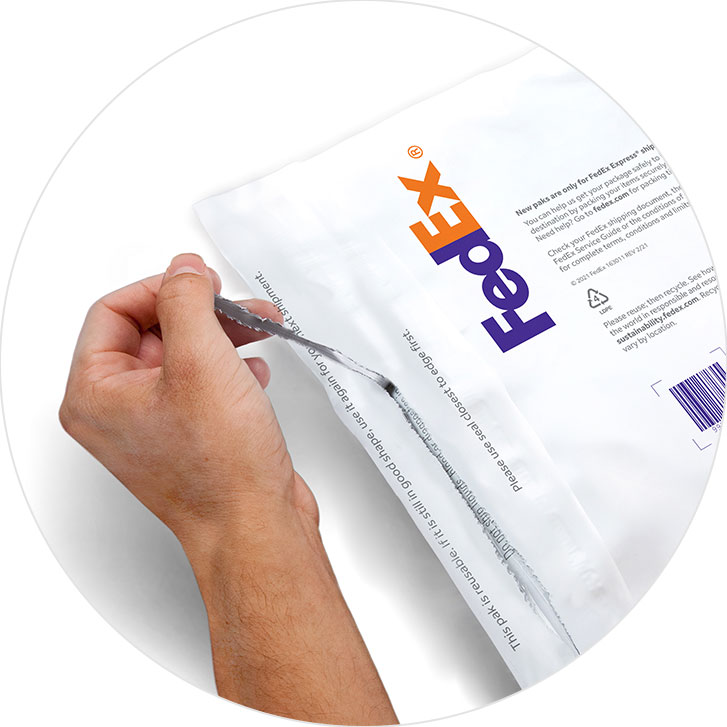
How can I tell if I received a shipment in reusable packaging? And if I did, how do I use it?
If the retailer sent your product in reusable FedEx packaging, it’ll say it’s reusable on the front of it. You’ll also see two adhesive strips. One of the strips will have been used by the retailer. Just use the unused strip to seal the package, then send your return. You can even use it to ship an item to another recipient.
FedEx pickup and dropoff for returns
Where can I drop off FedEx returns?
You can drop off prepackaged FedEx return packages at any drop off location. Visit a participating retail location below. For help packing or creating a shipping label, visit a FedEx Office, FedEx Office at Walmart, FedEx Authorized Ship Center, Office Depot or Office Max.
Drop off FedEx returns at:

spacer
spacer

spacer
spacer

spacer
spacer

Drop off FedEx returns at:
spacer

spacer
spacer

spacer
spacer

spacer

Drop off FedEx returns at:
spacer

How do I schedule a pickup or find a location for return shipments?
Here are a couple of options to help your return package easily reach FedEx:
- If you have a FedEx account, you can schedule a FedEx pickup online to your home or business for a small fee.
- Use our convenient locator tool to find your nearest FedEx location.
QR code returns
What do I do if my online store emailed me a QR code?
QR codes make returning online orders extra easy, with no printing at home needed. If you received a QR code from an online store, you can check the email containing your QR code for a list of participating drop off locations nearby. Then, you can simply take your sealed box to a participating location, and a team member will print your label and accept your return on the spot.
Which online stores offer QR code returns with FedEx?
Plenty of popular brands are working with FedEx to make returns easier, with no printing at home. Participating retailers include Walmart, eBay, Adidas, Levi's, Neiman Marcus, Tory Burch, American Eagle, Dockers, Perry Ellis and many more.
Getting support for returns
Do I need to pack my return item or can FedEx pack it?
You can pack your own return or get professional packing assistance at a location that offers in-person service. If you received specific instructions from your online store, please follow those packing directions.
Does the original online store or shipper need to coordinate pickups for returns?
Who can I call for returns support?
If you have questions, please call customer support.
Tracking FedEx returns
How do I track the status of my return package(s)?
Visit our tracking page to track your package.
How to handle USPS returns and UPS returns
Can I return UPS packages or USPS packages at a FedEx location?
No. Only FedEx shipments can be processed at a FedEx location. If an online store has provided you a return label with another shipping service, you won’t be able to return your package at a FedEx location. If you don’t have a shipping label, visit a FedEx location and choose affordable, fast FedEx Ground for an easy and inexpensive return.
Returns for less than you think
Want to return an online order without breaking the bank? If your online store didn’t provide you with a prepaid return label, choose affordable, fast FedEx Ground to get your item (and refund) back quickly.
Online return tips for a smooth return process
Shopping online is convenient, but sometimes the online return process can be confusing. Follow these tips for how to return online orders.